
Screen: /en/account/quotes · Counts: quotations drafted this month
QuotePilot drafts quotations priced only from a list you approved, in English and Arabic, and lets nothing reach a customer before a person approves it.
What it is for
Quoting is where businesses lose money quietly: an old price, a wrong tax rate, a number somebody remembered. QuotePilot makes that structurally impossible — a price it was not given, it will not quote.
Step 1 — build your price list
Under Price list, add each item:
- Item code — short, e.g.
WEB-AUDIT. This is what you type when drafting. - Name — what the customer reads on the quote.
- Unit price in the currency's smallest unit —
120000means 1200.00 USD. For a three-decimal
currency like KWD, 4500 means 4.500 KWD, not 45.00. The screen shows the formatted result back to you, so check it after saving.
- Currency — per item, so a list can hold more than one.
Step 2 — templates (optional)
A template stores item codes, quantities and a tax rate — never prices. Prices are read from your list when the quote is drafted, so an old template cannot quote an old price.
Step 3 — draft a quote
Enter the customer, then item codes separated by spaces and quantities in the same order.
If you name an item that is not on your list, the quote is refused and the item is named:
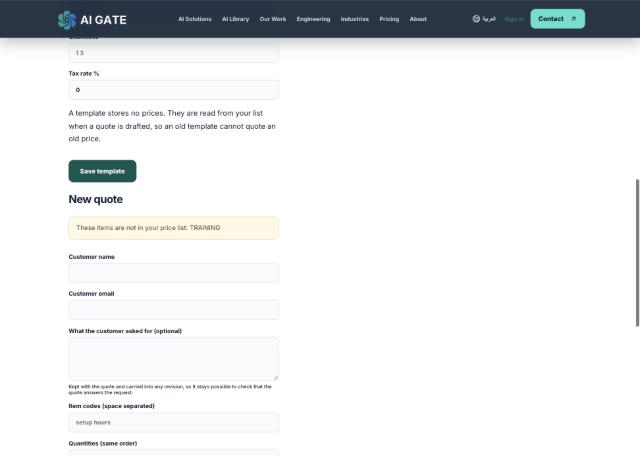
It does not guess, substitute, or quietly drop the line. Add the item to your price list, or remove it.
What the customer asked for is optional, kept with the quote and carried into every revision, so it stays possible to check that the quote answers the request.
Step 4 — approve, then send
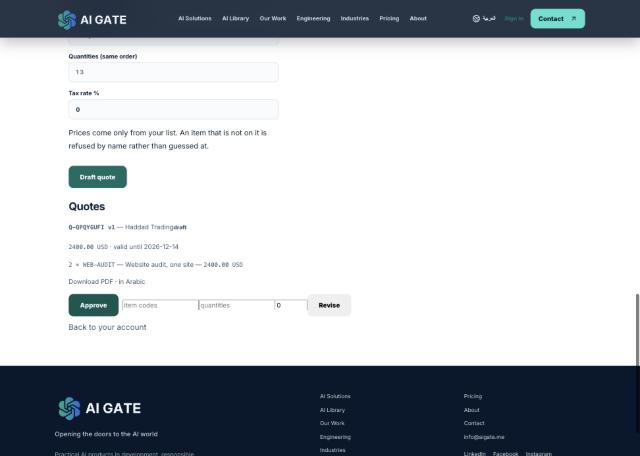
A new quote is draft. The PDF carries a DRAFT watermark until a person approves it. You get:
- Download PDF and In Arabic — the Arabic PDF is right-to-left with correct letter shaping.
- Approve — clears the watermark and allows sending.
- Revise — enter new codes and quantities. This creates v2 and keeps v1 exactly as the customer
already has it. Revising never rewrites history.
What it does not do yet
CRM integration, your letterhead on the PDF, and a delivery receipt if the mail queue is down. Email delivery marks a quote sent only after the mail actually leaves.
Watch out for
Quantities must line up with item codes positionally — WEB-AUDIT SETUP with 2 1 means two audits and one setup. Mismatched lengths are refused.